
FAQ
Support > Modify Apple ID to Hong Kong region to download
Support > Modify Apple ID to Hong Kong region to download
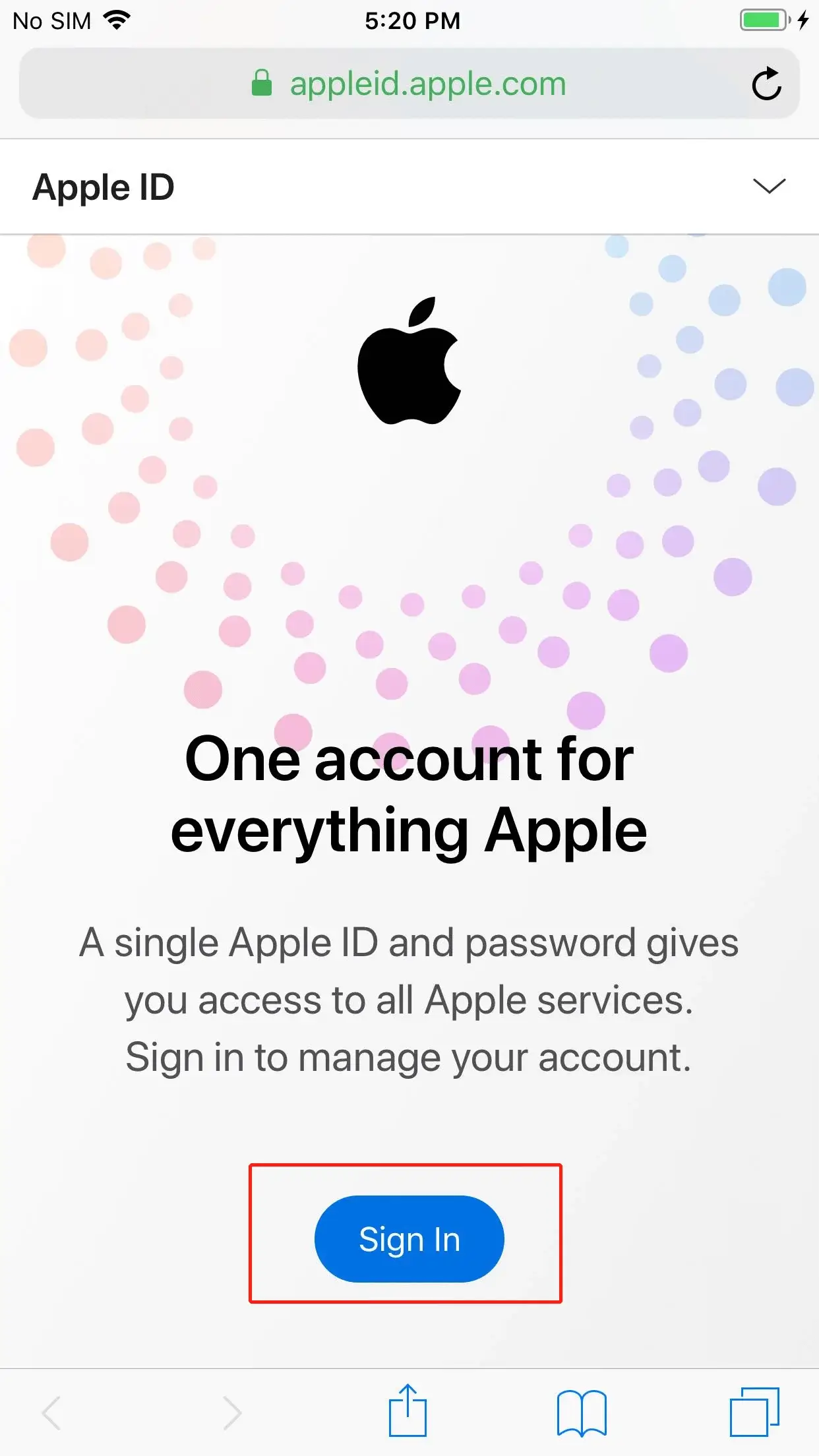
Step 1
Go to https://appleid.apple.com and select “Sign In” at the top right of the page, enter your Apple ID and Password and click “Sign In”.
Step 2
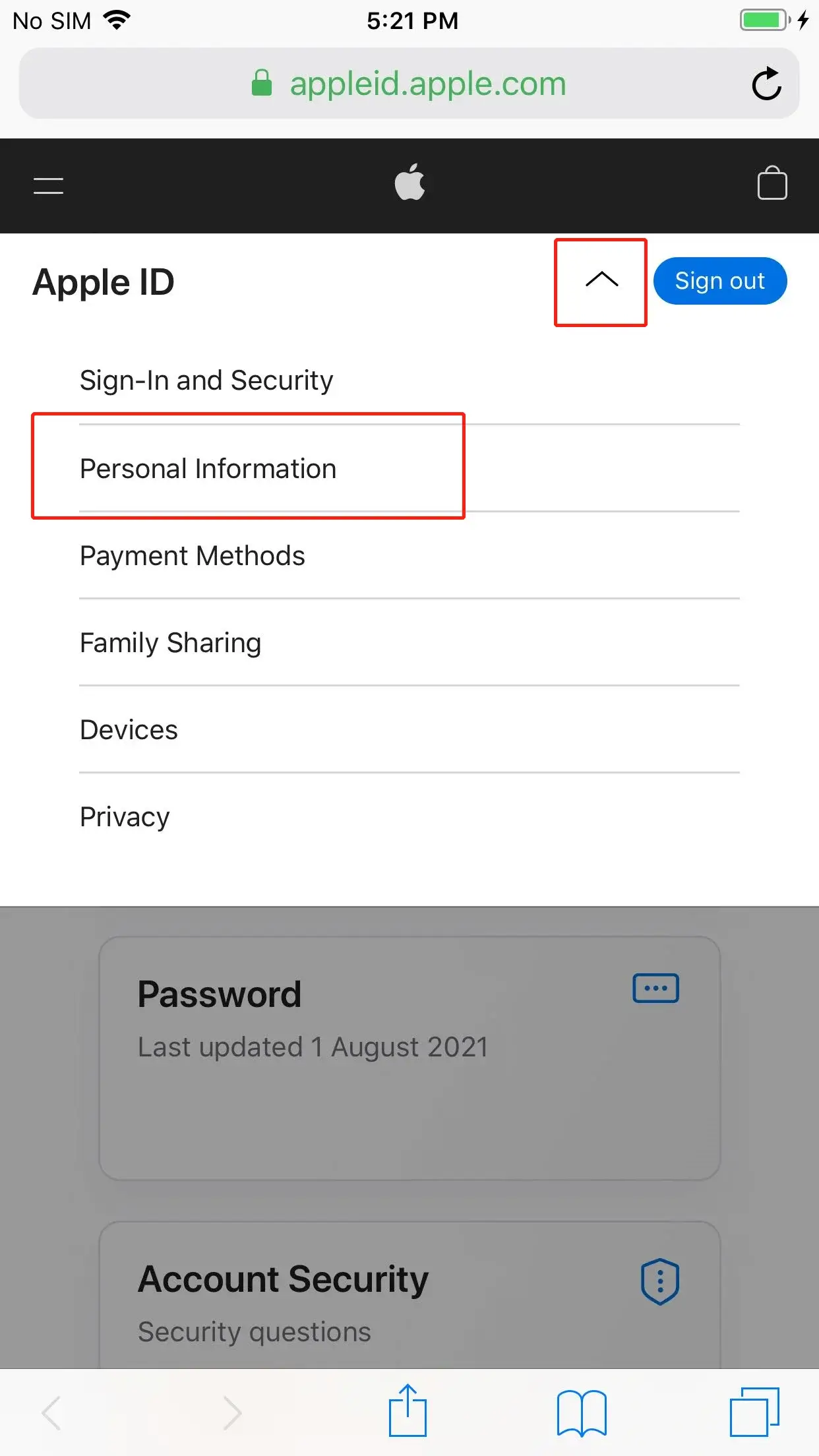
After login successful, select “Personal Information” at the top right drop-down menu.
Step 3
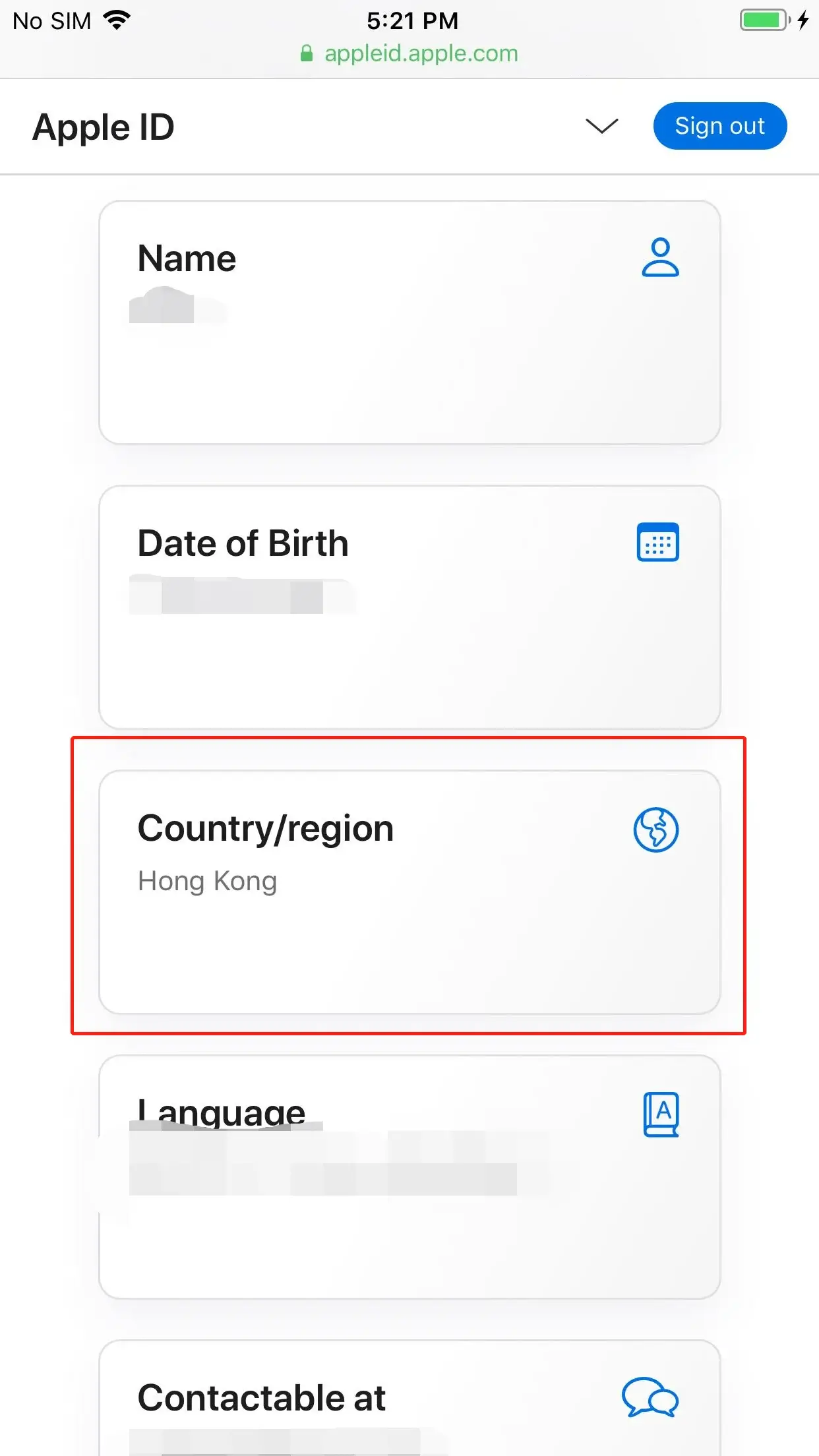
Select “Country/Region” at the personal information page. Enter your Apple ID and Click “Sign in”.
Step 4
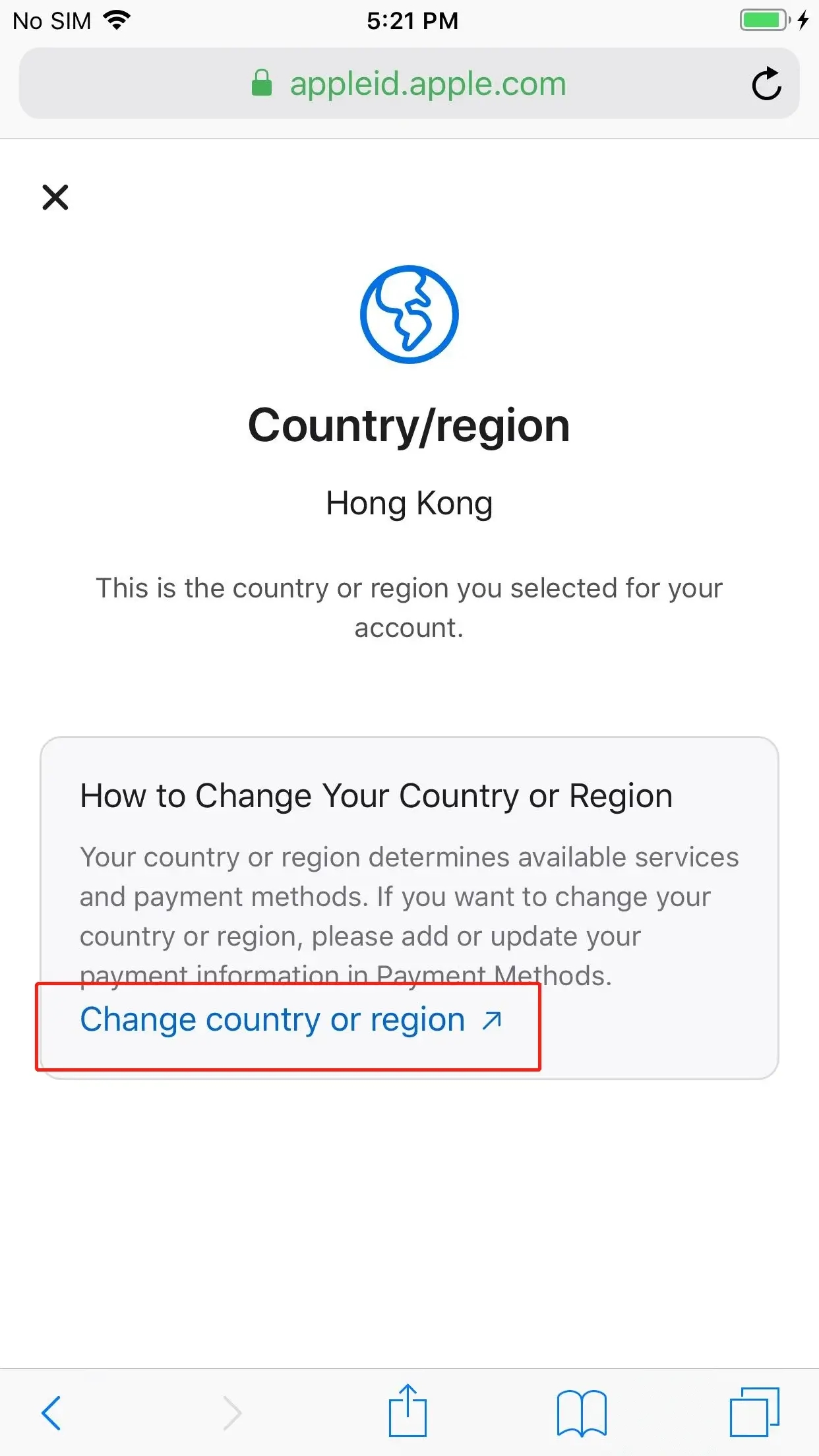
Select “Change country or region” on the Country/Region page. If you are prompt that you cannot change the Country/Region, please use other methods to download.
Step 5
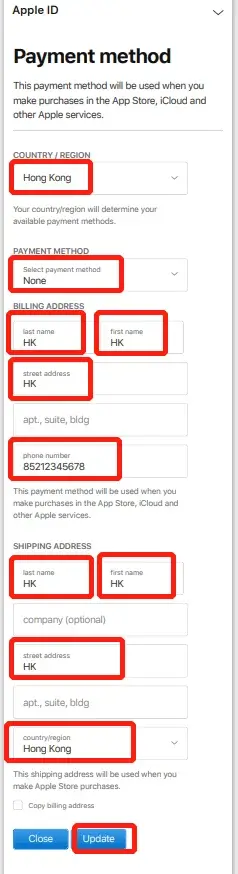
Please fill in the relevant information as described below:
Country: Hong Kong.
Apple only lets you change to a country or region where you live and have a valid address. Enter your real details:
Payment Method: a valid payment method for Hong Kong, or “None” if Apple offers it.
Billing Address and Phone Number: your real Hong Kong address and phone number.
Shipping Address: your real address, with “Hong Kong” selected for Country/Region. Select “Update”.
If the payment method can’t be empty, please use another method to download.
Step 6
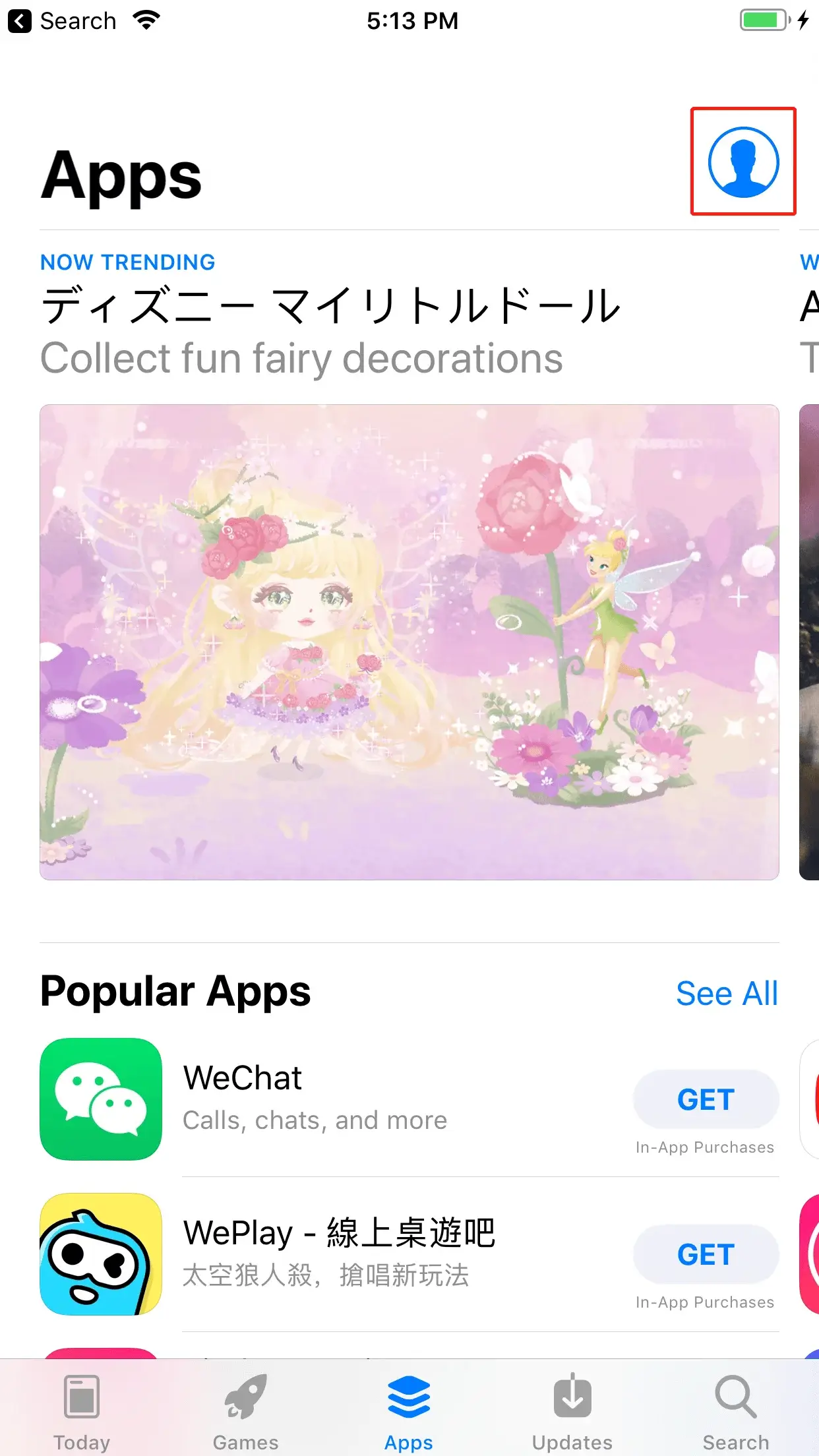
Open the App Store, click the icon at the top right of the windows.
Step 7
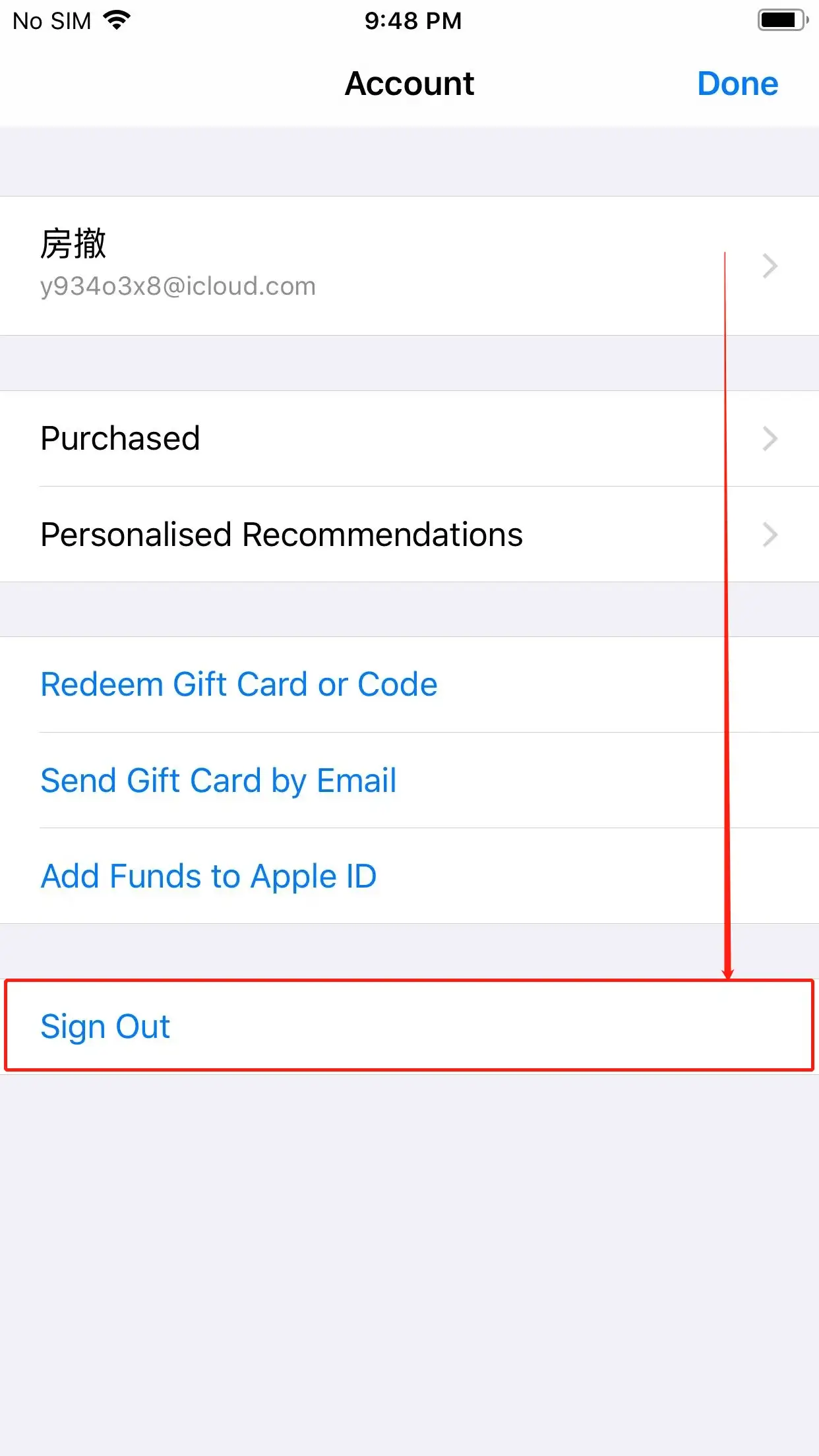
Scroll down to the end of the page, and select “Sign Out”.
Step 8
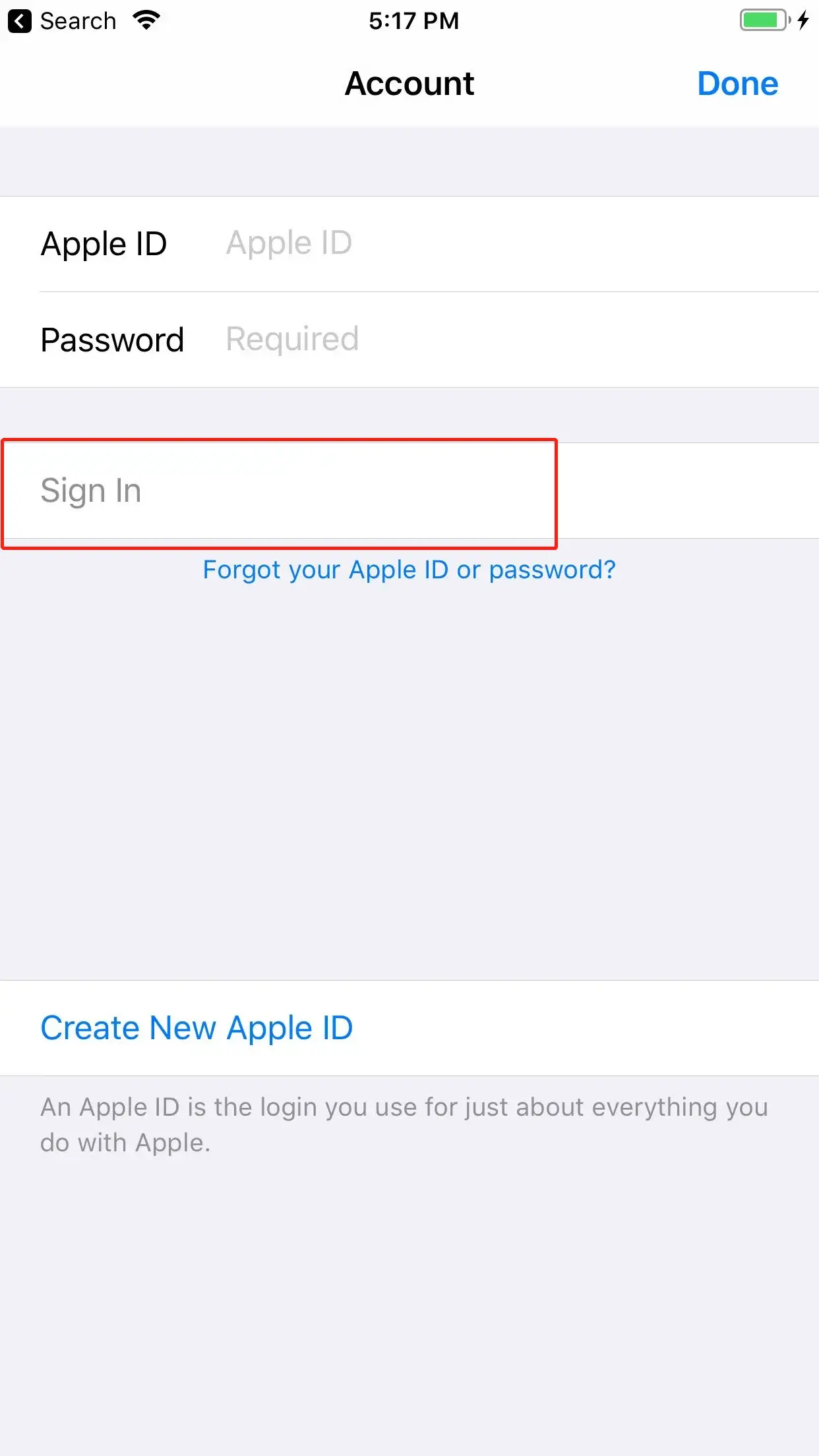
Login to the Hong Kong Apple ID you just registered, select “Sign In”, do not click “Done” at the upper right corner.
Last Step
When the store content changes to Traditional Chinese, your Apple ID is set to the Hong Kong region. You can now search for Pure JSQ VPN in the App Store and download it.
