FAQ
Support > Create a new HK Apple ID account
Support > Create a new HK Apple ID account
Step 1
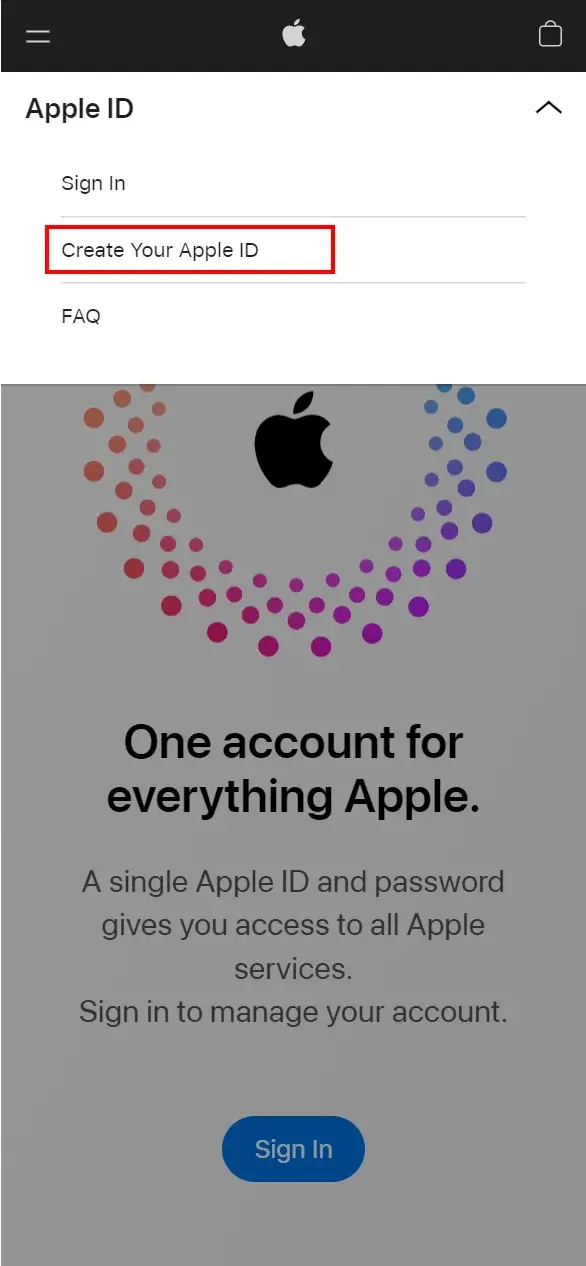
Go to https://appleid.apple.com and select “Create Your Apple ID” at the top right of the page to create your new Apple ID account.
Step 2
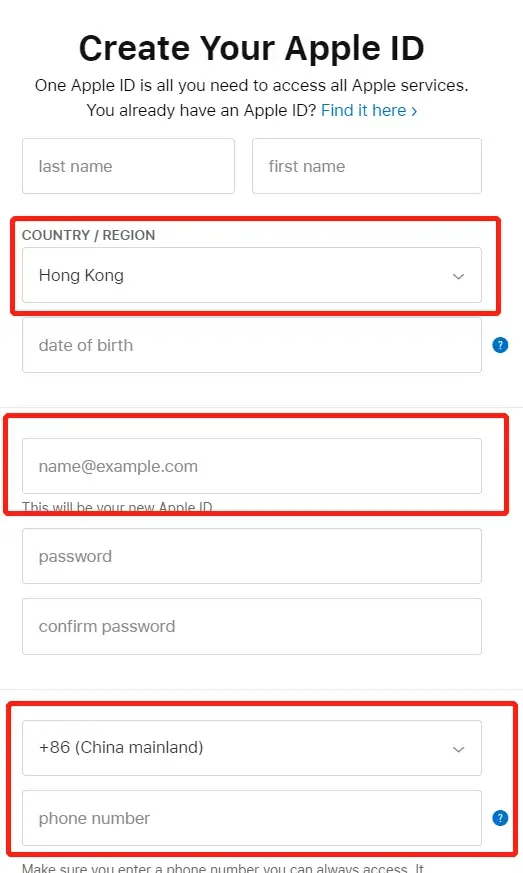
Enter your personal information according to the field. Select the country or region where you live (this guide uses “Hong Kong” as the example).
In addition:
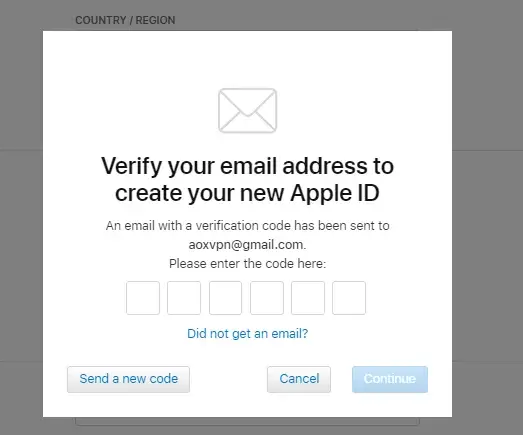
Email: You need a new email address that has never been registered with an Apple ID to receive the verification code.
Mobile number: Use a phone number you own and can receive verification codes on. Enter your real details. Apple asks you to choose the country or region where you live.
Step 3
After key in all the information, it will direct to email verification.
Step 4
After entering the email verification, you will direct to mobile number verification.
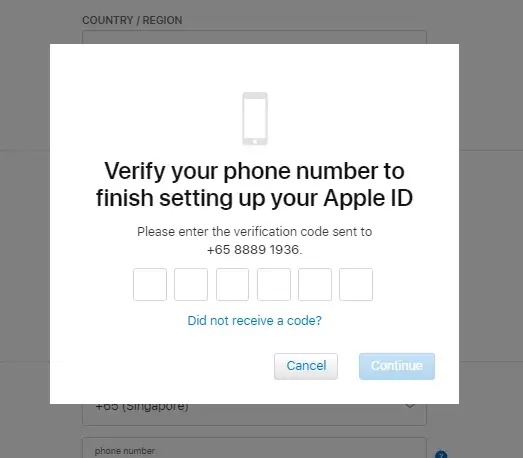
Step 5
If you are in the login and security page, it means that your Hong Kong Apple ID has been successfully registered.
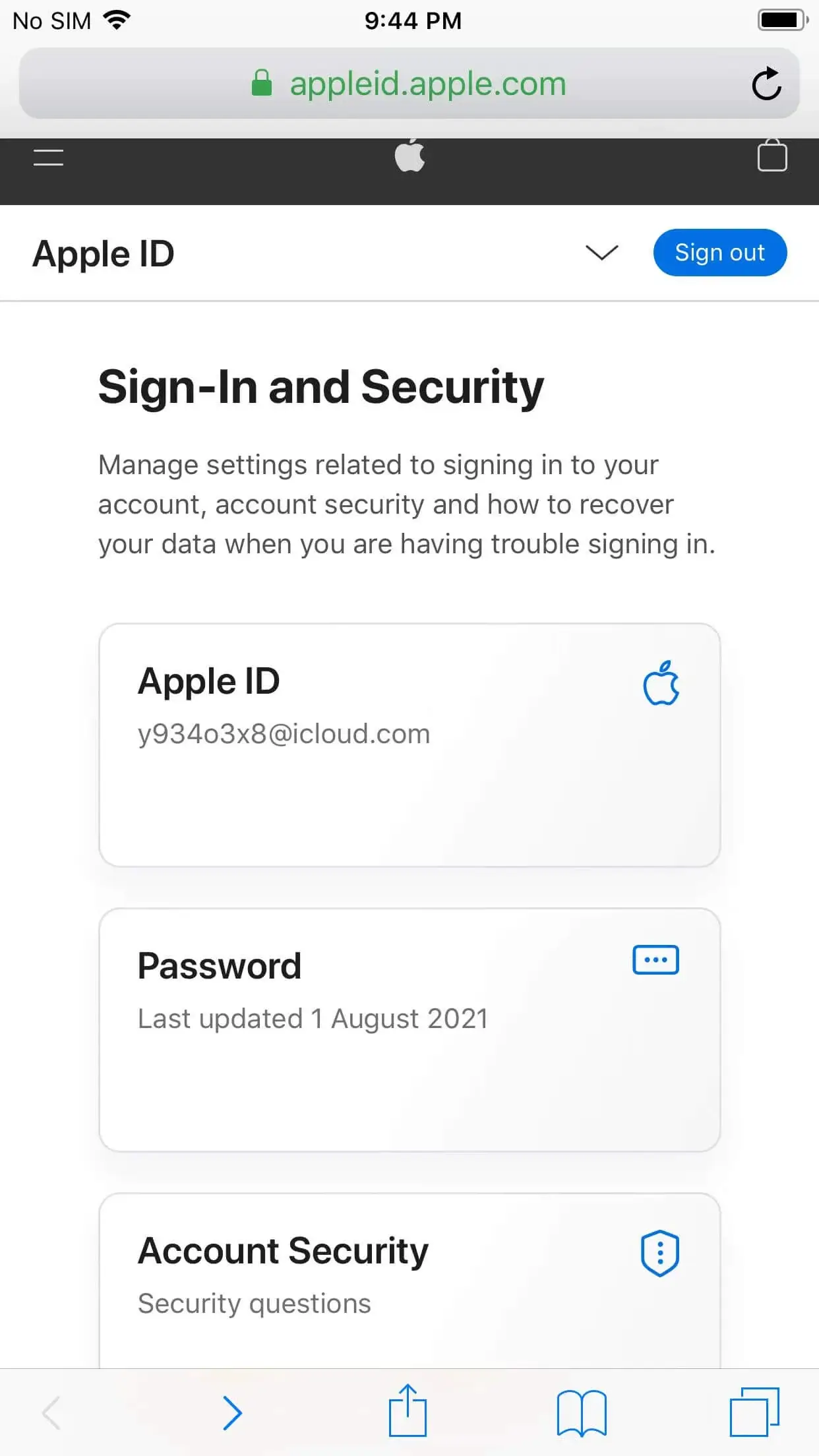
Step 6
Open the App Store, click the icon at the top right of the windows.
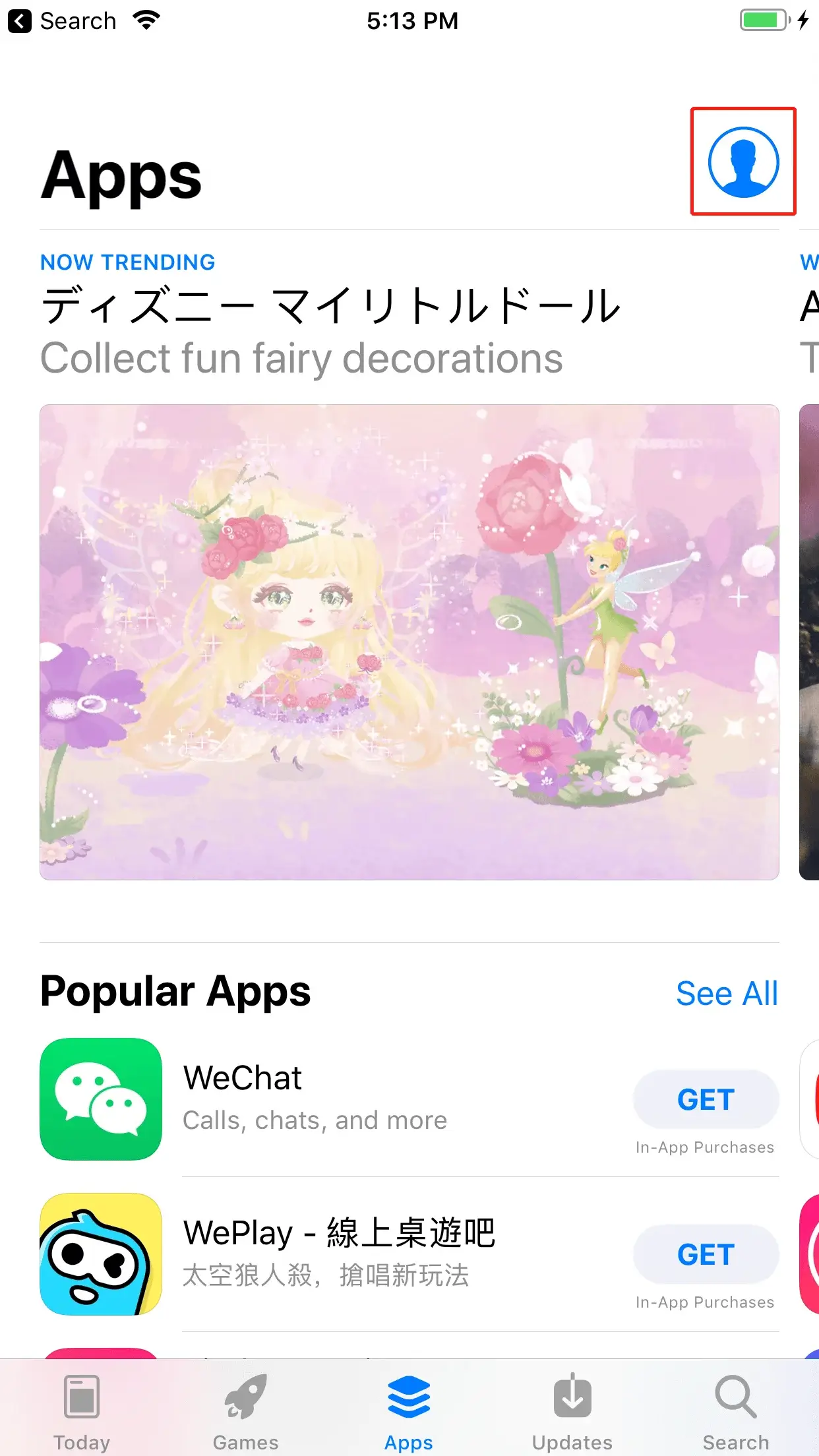
Step 7
Scroll down to the end of the page, and select “Sign Out”.
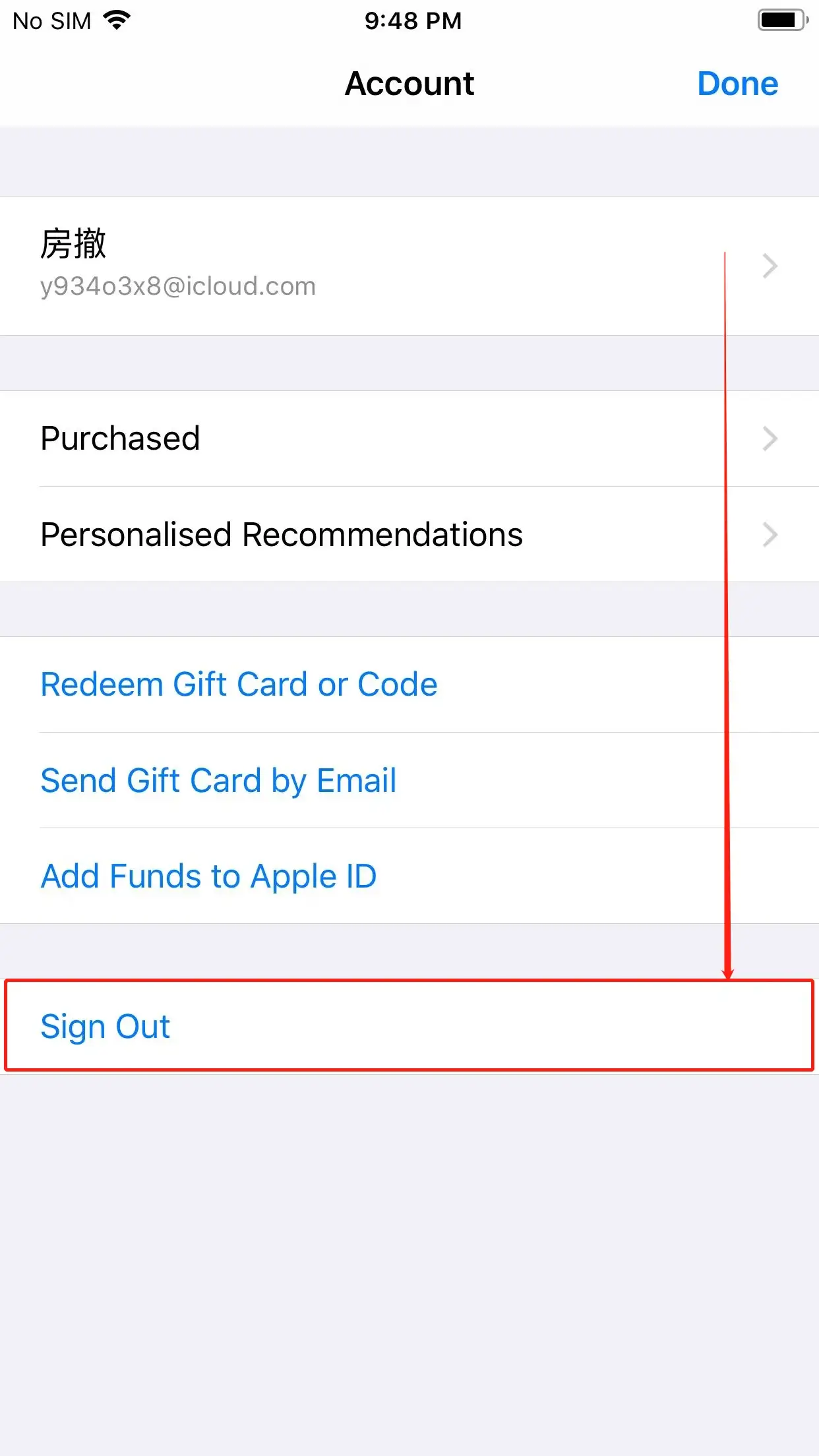
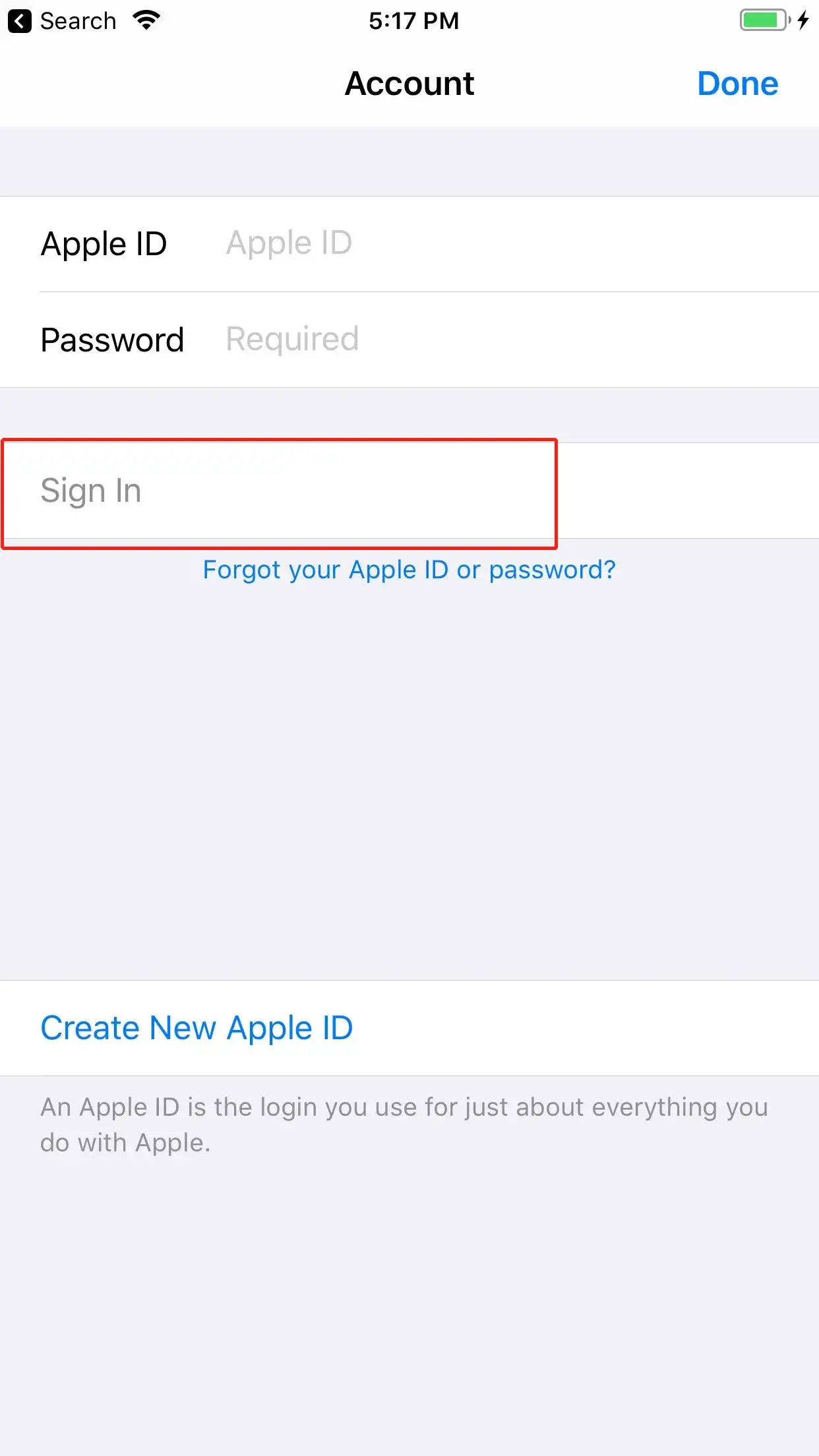
Step 8
Login to the Hong Kong Apple ID you just registered, select “Sign In”, do not click “Done” at the upper right corner.
Last Step
When you find that the store content has changed to traditional language, this means you have successfully switched to Hong Kong region. You can search for Pure JSQ VPN in the store to download.
Note
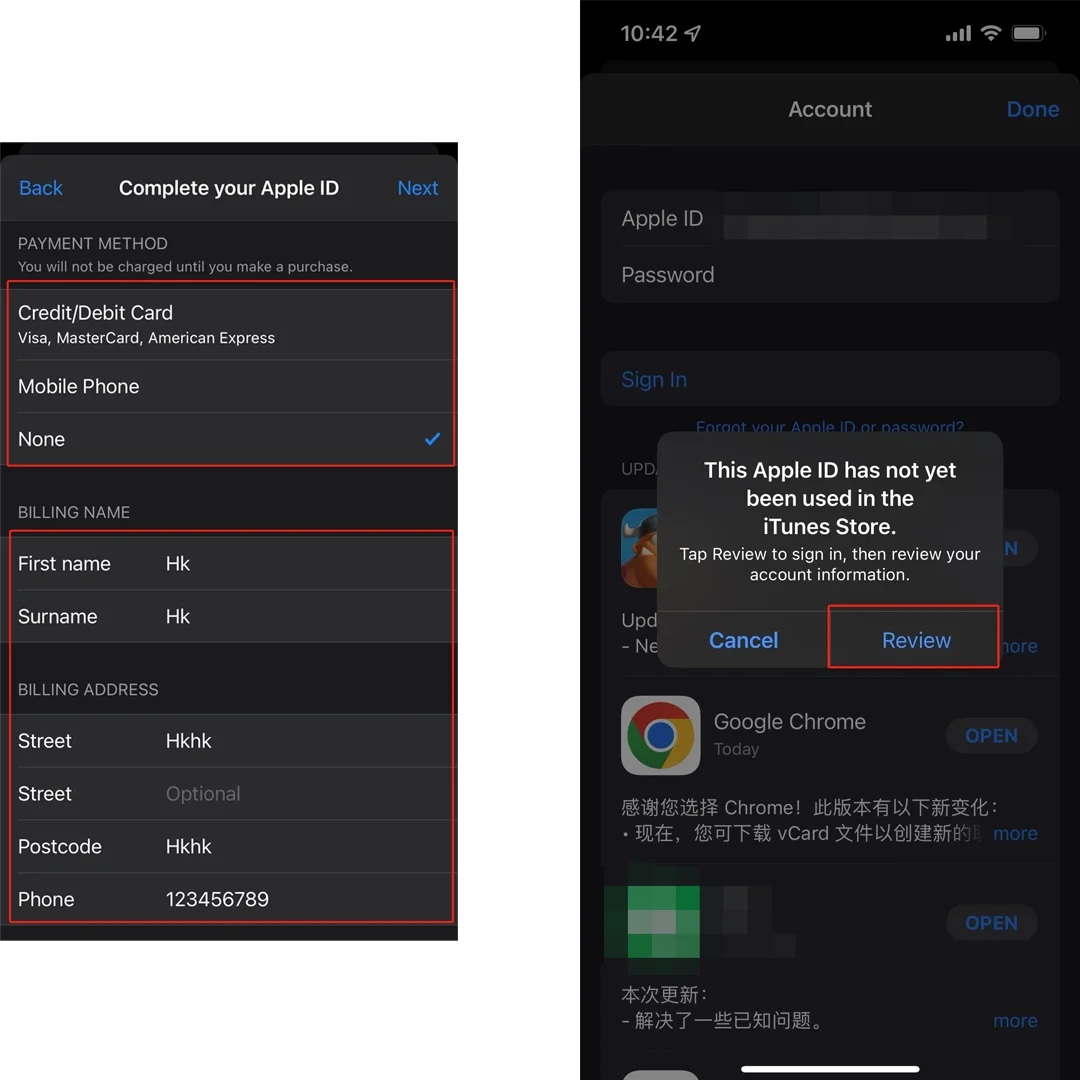
When the new Apple ID downloads an app for the first time, Apple asks you to review your account information. Select “Review” and follow the steps, using your real details. For free apps such as Pure JSQ VPN you can choose “None” as the payment method.